

Remote desktop software underpins hybrid work, cloud administration, and tech support. Developers use it to access servers, IT teams fix off-site computers, and remote workers connect to their office desktops. Two common options are Microsoft's built-in Remote Desktop Protocol (RDP) and the cross-platform AnyDesk. Both can provide full remote control of supported hosts, but their approaches to installation, compatibility, security, and pricing differ.
AnyDesk vs. Remote Desktop comes down largely to environment: AnyDesk is easier to deploy across mixed operating systems and networks, while RDP is usually the better fit when the remote machines already run a supported Windows edition. The biggest differences come down to setup, host compatibility, security, performance, features, and licensing.
What Is Remote Desktop Protocol?
Remote Desktop Protocol (RDP) is Microsoft's protocol for connecting to a remote Windows PC or Windows Server session. Windows Pro, Enterprise, Education, and Windows Server editions can accept incoming Remote Desktop connections, while Windows Home can act as a client but not a host. Microsoft provides Remote Desktop clients for Windows, macOS, iOS/iPadOS, and Android/Chrome OS; Linux users typically rely on third-party RDP clients. RDP supports clipboard and device redirection, remote printing, and, through Remote Desktop Services on Windows Server, multi-session desktops and RemoteApp. Network Level Authentication is built in, while multi-factor authentication requires additional RDS or identity infrastructure.
What Is AnyDesk?
AnyDesk is a proprietary remote access tool designed for speed and cross-platform use. It supports Windows, macOS, Linux, Android, and iOS/iPadOS, but host capabilities vary by platform: iOS and iPadOS devices cannot be remotely controlled, and incoming Linux sessions require Xorg rather than Wayland. The DeskRT codec supports up to 60 frames per second, and personal use is free. Core features include unattended access, session recording, file transfer, remote printing, multi-monitor support, and in-session chat. Current AnyDesk connections use TLS 1.3, RSA 2048 key exchange, and 256-bit AES transport encryption.
AnyDesk vs. Remote Desktop at a Glance
The table below distils their headline differences (setup effort, platform range, security stack, day-to-day performance, and cost), giving you a quick feel for which option fulfills your needs before we explore each factor in depth.
| Feature | AnyDesk | Remote Desktop |
|---|---|---|
| Installation & Setup | Small download; ID-based pairing | Built into Windows 10/11 Pro/Enterprise |
| Host OS Support | Windows, macOS, Linux, Android; iOS/iPadOS view-only | Windows Pro/Enterprise/Education; Windows Server |
| User Interface | Minimal panel with toolbar | Full Windows desktop interface |
| Security | TLS 1.3, RSA 2048, AES-256, 2FA | Encrypted channel, Network-level auth |
| Performance | DeskRT codec; low latency | Efficient for desktop work; richer graphics need more bandwidth |
| Key Features | Unattended access, recording, drag-and-drop | Multi-session, RemoteApp, remote audio |
| Support & Community | Email/phone support, smaller community | Extensive documentation and forums |
| Pricing | Free for personal use; paid tiers for commercial use, billed annually | Free protocol; requires a Windows Pro/Enterprise or Server licence to host |
AnyDesk runs on many platforms and performs well on slow connections, while RDP integrates deeply with Windows and offers management features aimed at larger fleets.
In-Depth Comparison of AnyDesk vs. Remote Desktop
The trade-offs become clearer when you separate host requirements from the features available after a connection is established.
Download Size & Setup
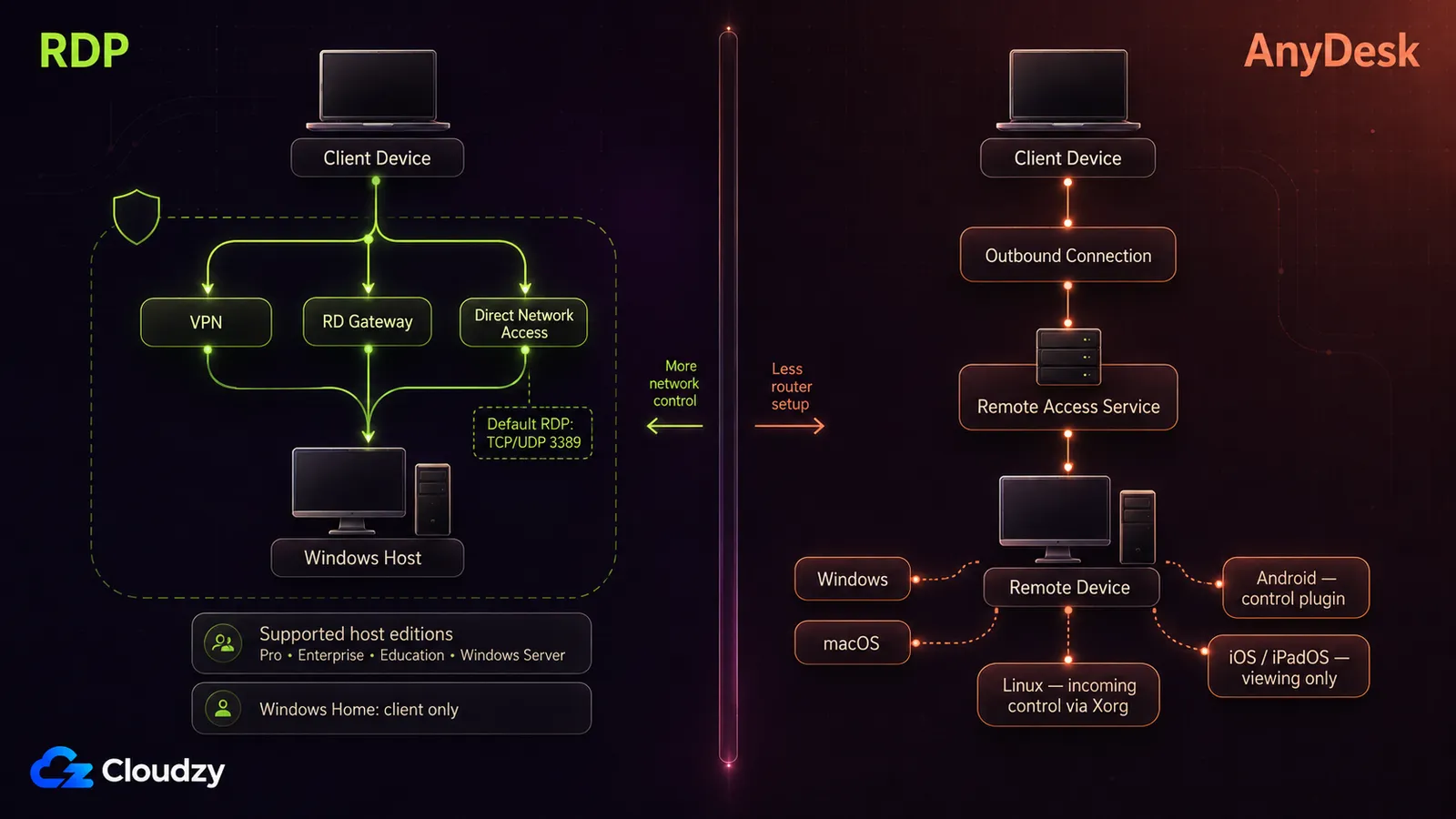
RDP hosting is built into supported Windows Pro, Enterprise, Education, and Windows Server editions, so you don't need to install a separate remote-access product. Simply enable remote access and adjust the firewall. Clients are free for Windows, macOS, Android, and iOS. AnyDesk is independent software; you download a small installer and share a session ID.
- Install effort: RDP is preinstalled on supported Windows editions; AnyDesk must be downloaded on every device.
- Network configuration: RDP often needs port forwarding or a VPN when connecting over the internet. AnyDesk uses outbound connections, so it usually works through firewalls without router changes.
- Continuity & licensing: RDP keeps sessions alive so you can reconnect; it accepts incoming Remote Desktop connections on Windows Pro, Enterprise, Education, and Windows Server. AnyDesk offers unattended access on supported platforms, but incoming-control capabilities vary by operating system.
If you value zero-install hosting, RDP wins. If you need to get started quickly across networks, AnyDesk's ID system is simpler. After installation, check which operating systems you need to support. If your remote machine lives in the cloud, our guide on How to Connect to Windows VPS via RDP provides a step-by-step walkthrough.
OS Compatibility
The operating system can dictate your choice. RDP hosts run on supported Windows Pro, Enterprise, Education, and Windows Server editions, though clients are cross-platform. AnyDesk supports incoming remote control on several platforms, but host capability varies: iOS/iPadOS cannot be remotely controlled, and incoming Linux sessions require Xorg rather than Wayland.
- Hosts: Windows Home cannot host RDP sessions; AnyDesk supports incoming control on Windows, macOS, Linux with Xorg, and Android with a control plugin, while iOS/iPadOS devices cannot be remotely controlled.
- Clients: Both tools offer clients for desktops and mobile devices. Microsoft's Windows App provides browser access to services such as Azure Virtual Desktop, while direct Remote PC connections require a supported native client. AnyDesk also offers browser-based outgoing access through go.AnyDesk.
- Server roles: RDP integrates with Remote Desktop Services on Windows Server for multi-session environments and RemoteApp publishing, on Server 2022 and 2025 alike; AnyDesk runs stand-alone on individual servers or desktops.
If your fleet mixes operating systems, AnyDesk's host flexibility is appealing. Windows-centric organisations may favour RDP for its tighter integration.
User Experience & Interface
RDP replicates a full Windows desktop, making it ideal for advanced troubleshooting and development. AnyDesk displays only the remote screen with a slim toolbar, offering a cleaner look.
- Desktop feel: RDP provides the complete Windows interface; AnyDesk shows a minimal control panel.
- Ease of connection: AnyDesk is user-friendly; enter the remote ID and click Connect. RDP requires you to know the host name or IP and have proper credentials.
- Multi-monitor and printing: Both tools support multiple monitors and remote printing, though AnyDesk may need an extra driver.
For quick support and cross-platform work, AnyDesk's simplicity stands out. For full Windows management, RDP remains familiar.
Security & Privacy
Both products encrypt remote sessions but differ in authentication and network exposure. RDP supports Network Level Authentication, while AnyDesk uses TLS 1.3, RSA 2048 key exchange, 256-bit AES transport encryption, and optional two-factor authentication.
- Encryption & authentication: Both tools encrypt traffic; AnyDesk also supports 256-bit AES and offers two-factor authentication and whitelisting.
- Port exposure: RDP uses TCP and UDP port
3389by default, so exposing it directly to the public internet increases the attack surface. AnyDesk normally reaches its service through standard outbound connections, reducing the need for router-level port forwarding. - Privacy: AnyDesk's Privacy Mode can blacken the remote screen so someone physically present at the device cannot view the session.
Both can be deployed securely, but the controls differ. For RDP, keep Network Level Authentication enabled and avoid exposing 3389 directly when a VPN or RD Gateway is available. For AnyDesk, enable two-factor authentication for unattended access and restrict connections with the Access Control List.
Speed & Latency
Responsiveness influences productivity. AnyDesk is built around DeskRT and advertises up to 60 FPS on local networks and many internet connections, including operation on constrained links. RDP also compresses and adapts remote graphics dynamically, but higher resolutions and graphics-heavy workloads increase its bandwidth requirements.
- Codec & bandwidth: AnyDesk compresses screen updates efficiently for constrained connections. RDP's bandwidth requirements rise with resolution and graphics-heavy workloads, so video and 3D work are more demanding than ordinary desktop administration.
- Frame rate: AnyDesk supports up to 60 FPS, while RDP remote sessions are commonly capped at 30 FPS by default; Windows Server can be configured for a higher maximum.
- Connection setup: RDP may require a VPN, RD Gateway, or port forwarding for internet access, which adds deployment complexity rather than necessarily increasing protocol latency. AnyDesk's outbound connections traverse firewalls easily.
For everyday administrative tasks on stable connections, RDP is adequate. For responsive control under poor connectivity, AnyDesk is better.
Features & Collaboration
RDP's strength lies in centrally managed deployments. It supports file transfer via mapped drives, clipboard sync, remote audio, RemoteApp publishing, and multi-session management. AnyDesk emphasises ease of use with drag-and-drop file transfers, session recording, unattended access, remote printing, and a built-in chat.
- File and sessions: RDP uses network drives and supports multiple concurrent sessions on Windows Server; AnyDesk offers drag-and-drop file transfer and device-to-device remote support, while Windows Server RDS is designed for centrally hosted multi-user sessions.
- Recording & chat: AnyDesk allows session recording and includes chat and a simple whiteboard. RDP lacks native recording and relies on external communication tools.
- Remote printing & audio: Both tools support printing to a local printer and streaming audio. AnyDesk may require installing a printer driver.
If you need multi-session support and application publishing, RDP is superior. For recording sessions and built-in collaboration, AnyDesk offers a friendlier toolkit.
Pricing & Licensing
RDP itself does not carry a separate subscription fee, but the host still needs an eligible Windows licence. Windows Pro, Enterprise, Education, and Windows Server can accept incoming Remote Desktop connections. If you use Remote Desktop Services for a multi-user Windows Server deployment, RDS Client Access Licences (CALs) also apply. Microsoft Remote Desktop clients do not add a separate RDP subscription fee.
AnyDesk is free for personal, non-commercial use. Commercial use requires a paid licence. The paid range runs from a single-user Solo plan up through Standard and Advanced for teams, with a quote-based Ultimate tier above them, and every tier is billed annually. Two things are easy to miss when budgeting: the headline figure is quoted per month but charged for the full year, and additional concurrent connections on the team tiers are paid add-ons, so cost tracks the number of simultaneous sessions rather than seats alone. AnyDesk's pricing page carries the current numbers, which vary by region and currency.
If you already own Windows licences, RDP can be cost-effective. For teams needing cross-platform access and collaboration features, AnyDesk's subscription may be justified. Beyond these two tools, you have other options.
If you don't have a Windows machine that can stay online and reachable, a hosted RDP server is another option. Our RDP servers provide a persistent Windows desktop with administrator access.
Alternative & Built-In Options
You're not limited to RDP or AnyDesk. A Virtual Private Server running Windows Server provides a persistent cloud desktop reachable over RDP, which suits anyone whose own machines are switched off overnight, sitting behind a residential router, or not dependable enough to build a workflow on. It is a rented machine, so it brings a recurring bill and a server you administer yourself.

Get an RDP server with instant setup, full root access, and NVMe storage.
Buy RDPOther tools like Chrome Remote Desktop, RustDesk, and Remmina cater to different needs, while VNC-based solutions work well in mixed-OS setups. That said, the RDP vs. VNC discussion is an entirely different story, though.
By pairing software with reliable infrastructure, you can build a remote work setup tailored to your workflow.
How to Choose Between AnyDesk & Remote Desktop
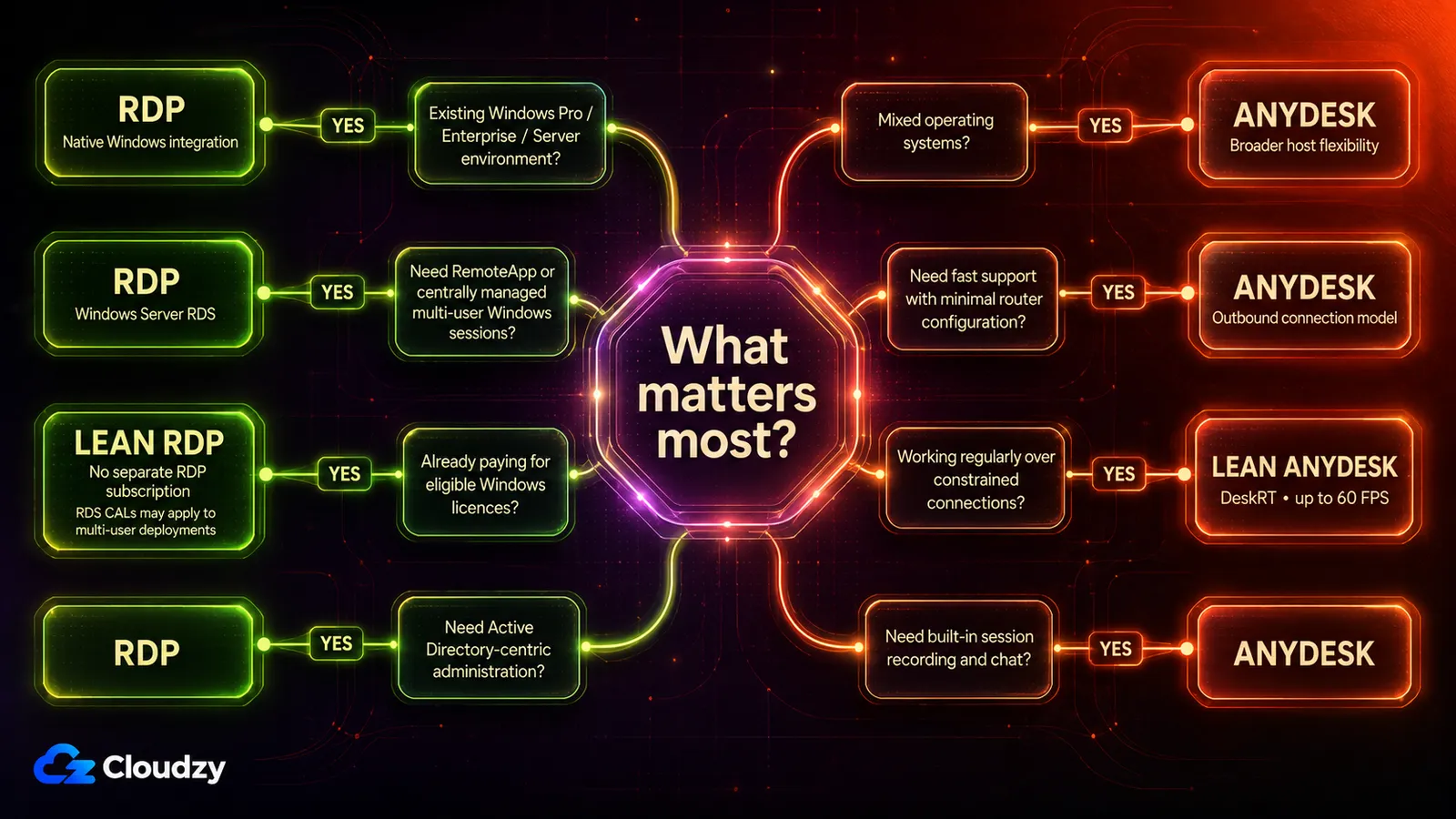
Different users prioritise different features. Use this quick matrix to guide your decision.
- Remote workers: If you often connect from various devices and need a quick, low-bandwidth solution, AnyDesk's ease of setup and responsive performance make it an excellent choice.
- IT administrators: Managing Windows servers and enforcing policies is easier with RDP's integration into Active Directory and support for multi-session environments.
- Developers: Those working on macOS or Linux benefit from AnyDesk's broader cross-platform host support. Developers tied to Windows Server can still rely on RDP.
- Freelancers: Solo professionals appreciate AnyDesk's free personal plan on their own machines and its small footprint, though billing a client is commercial use and moves you onto a paid tier. It scales smoothly as your client base grows.
- Business decision-makers: Evaluate total cost and needed features. Organisations with existing Windows Pro licences may find RDP cheaper; teams that need cross-platform collaboration may opt for AnyDesk. See Shared RDP vs Admin RDP to understand licensing choices.
Frequently Asked Questions
How much does RDP cost?
The protocol itself is a built-in Windows feature and costs nothing on its own. What costs money is the licence that lets a machine host sessions: Windows 10 or 11 Pro or Enterprise, or Windows Server with its client access licences. If you own no machine that can host, add the cost of buying or renting one.
How can I enable Remote Desktop?
You can simply follow the instructions in this guide to enabling RDP on Windows to quickly get things going.
Which protocol does AnyDesk use?
AnyDesk transmits screen data with its proprietary DeskRT codec and secures current sessions with TLS 1.3, RSA 2048 key exchange, and 256-bit AES transport encryption. AnyDesk uses TCP ports 80, 443, and 6568; at least one must be open for a remote connection. UDP ports 50001–50003 are used for local-network device discovery.
What is the most secure remote access protocol?
No single protocol is perfect, but RDP with Network-Level Authentication and a current TLS version is regarded as secure when combined with firewalls, multi-factor logins, and account lock-out rules. SSH tunnels and brokered Zero-Trust gateways offer a similar level of protection.
Is AnyDesk better than RDP?
It depends. AnyDesk excels at cross-platform hosting, low-bandwidth performance, and in-session collaboration. RDP stays ahead for Windows-centric environments that need multi-session support and Active Directory integration. Neither tool is universally "better"; choose the one that aligns with your workflow and licence footprint.
Where can I find a list of the best RDP providers?
You can check out our comprehensive list of the best RDP providers to help you choose the right one for your needs.
Discussion
Comments
Sign in to join the discussion.